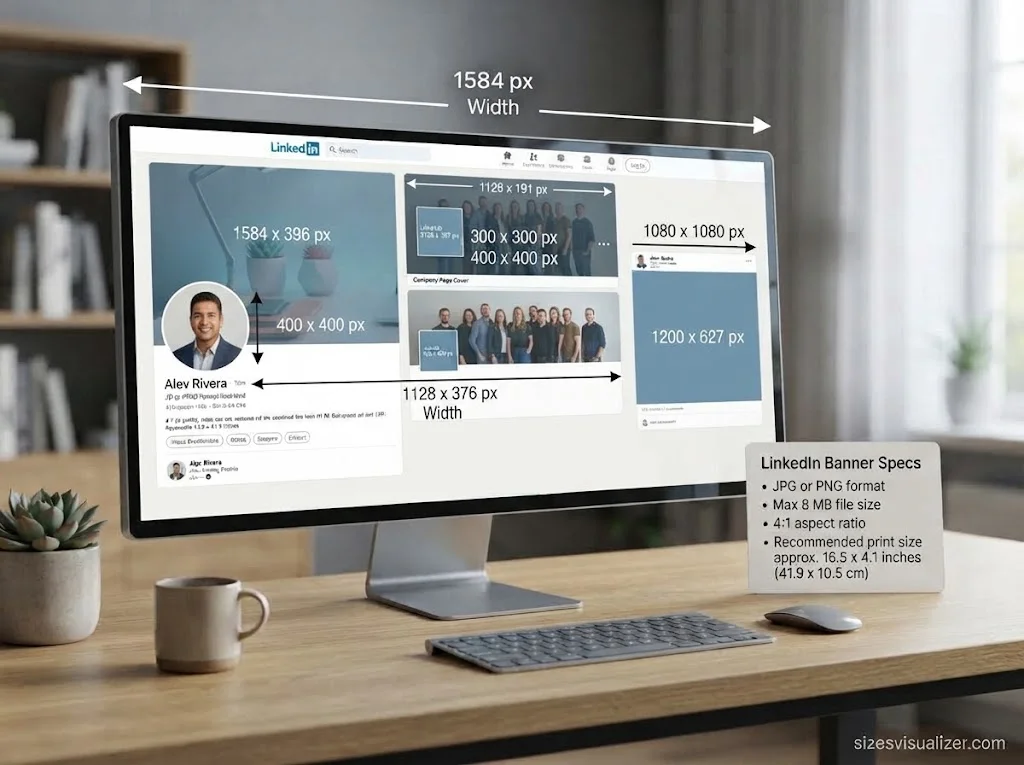
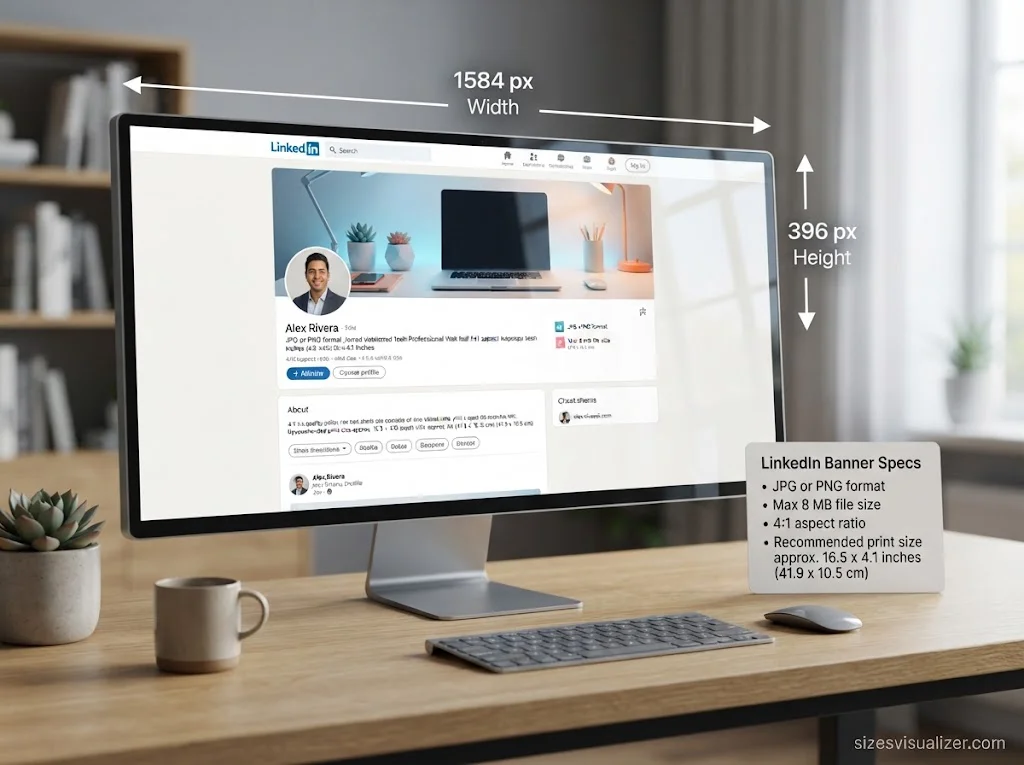
Your LinkedIn banner size is 1584 x 396 pixels. That is a 4:1 ratio, so the image is four times wider than it is tall.
Get that number wrong and your banner looks blurry, stretched, or oddly cropped. This guide gives you every LinkedIn banner sizes & dimensions, a simple cheat sheet, and easy steps to fix any banner.
Table of Contents
LinkedIn Banner Size & Dimensions in 2026
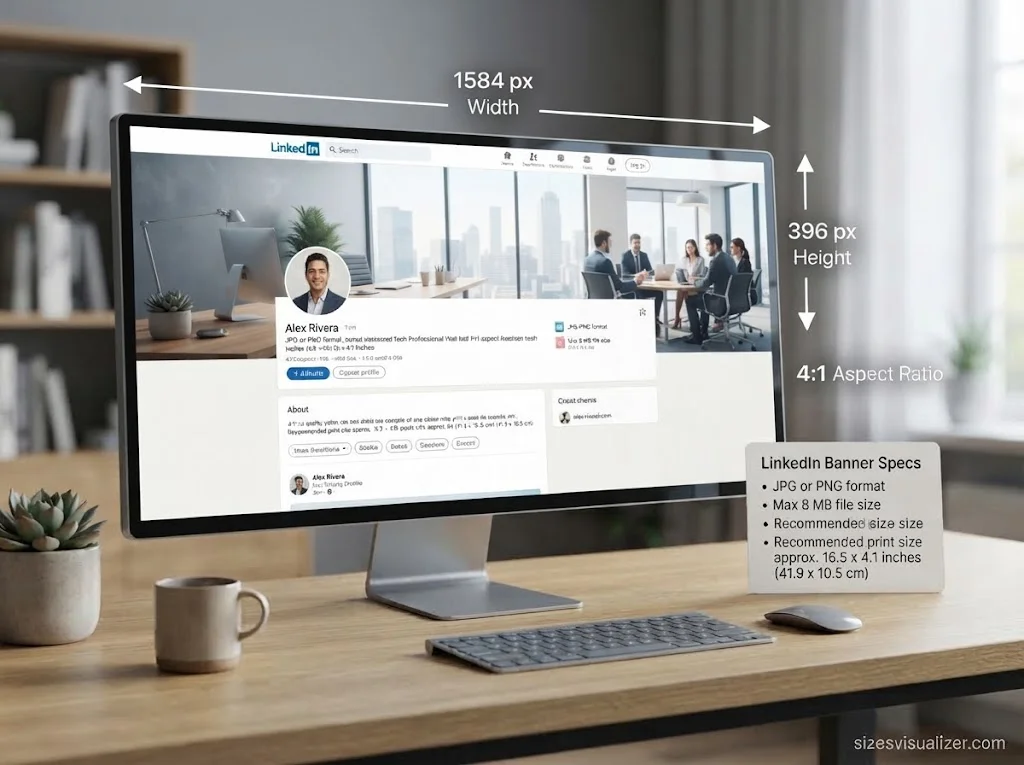
Use 1584 x 396 px. The LinkedIn background photo for a personal profile is 1584 × 396 pixels, with a 4:1 ratio and an 8 MB limit. LinkedIn’s own name for this image is the background photo. People also call it a cover photo, profile banner, or header image. It is all the same image.
| Spec | Value |
|---|---|
| Pixels | 1584 x 396 px |
| Aspect ratio | 4:1 |
| Inches | about 16.5 x 4.1 in |
| Centimeters | about 41.9 x 10.5 cm |
| File formats | JPG or PNG |
| Max file size | 8 MB |
Always design in pixels. Inches and centimeters only matter for print, and LinkedIn is a screen platform.
Here is what happens with the wrong size:
- Too small: LinkedIn stretches it, and it turns soft and pixelated.
- Too big or the wrong ratio: LinkedIn scales it down and crops the edges.
- Tall photos: the top and bottom get cut, often right through faces.
LinkedIn Banner Safe Zone: Mobile vs Desktop Dimensions
Your banner does not show the same way on every screen. On desktop, you see most of the full image. On phones, the edges get trimmed.
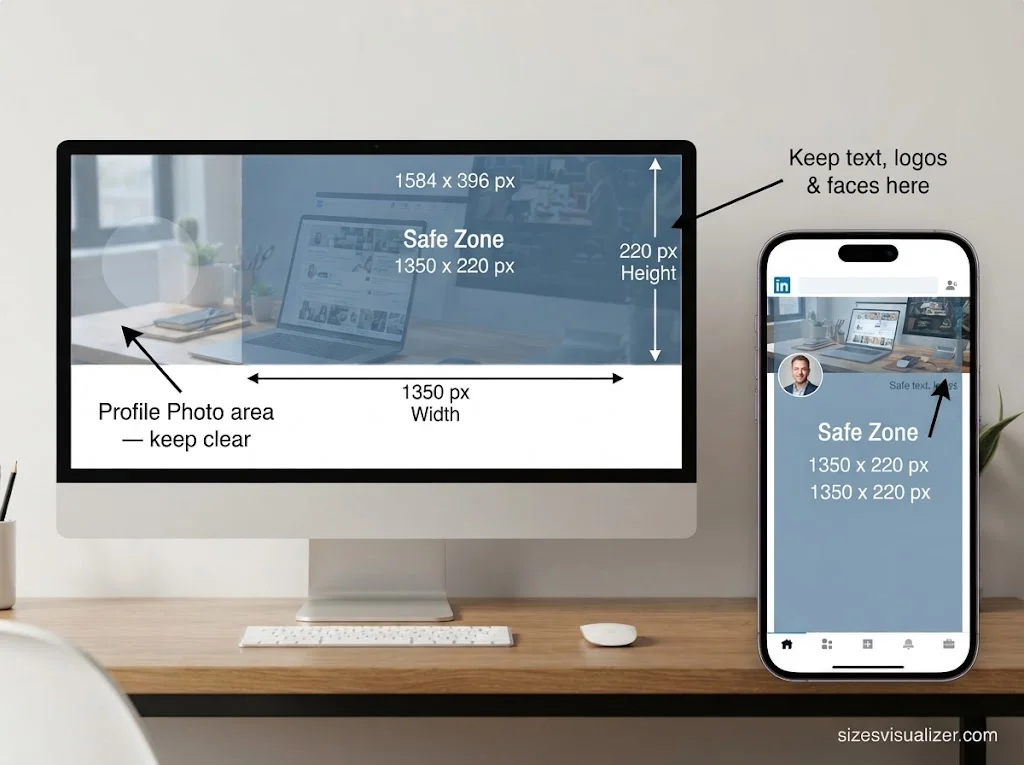
The bigger problem is your profile photo. It sits on the lower left of the banner as a circle. Your name and headline sit right under it. Anything you place there gets hidden.
Follow these safe zone rules:
- Keep text, logos, and faces in the center-right area.
- Use a safe box of about 1350 x 220 px, centered.
- Leave a 10% margin from all four edges.
- Treat the left third as background only.
Example: A job seeker adds the line “Data Analyst | Python, SQL, Tableau” on the right side. It stays clear of the profile photo and reads fine on a phone.
More LinkedIn banner design tips:
- Lead with one idea. A banner gets a glance, not a study.
- Use high contrast so text stands out. A soft dark overlay helps on busy photos.
- Keep text short, five to eight words at most.
- Match your brand colors and fonts.
- Use whitespace. Empty space makes the main message pop.
Good ideas by user type:
- Job seeker: your role and top skills.
- Freelancer: your service and a simple call to action.
- Business owner: your tagline and logo.
Must Visit: IBC Tote Dimensions: Standard Sizes, Measurements & Capacity Guide
LinkedIn Banner Size vs Other LinkedIn Image Dimensions (Cheat Sheet)
Many people mix up the personal banner and the company page cover. They are different sizes.
| Image | Recommended size |
|---|---|
| Personal profile banner | 1584 x 396 px |
| Company page cover | 1128 x 191 px (display size) |
| Profile photo | 400 x 400 px |
| Company logo | 300 x 300 px or 400 x 400 px |
| Life tab main image | 1128 x 376 px |
| Square post image | 1080 x 1080 px |
| Landscape post image | 1200 x 627 px |
| Link preview image | 1200 x 627 px |
The company cover is tricky. Some guides say a Company Page cover should be uploaded at 4200 x 700 px, while LinkedIn displays it at about 1128 x 191 px. Sizes change over time, so check the upload prompt on LinkedIn or the LinkedIn Help Center before you export.
One rule stays firm: never reuse a personal banner on a company page. The ratio is different, and the crop will ruin your layout.
How to Resize, Make, and Fit a LinkedIn Banner
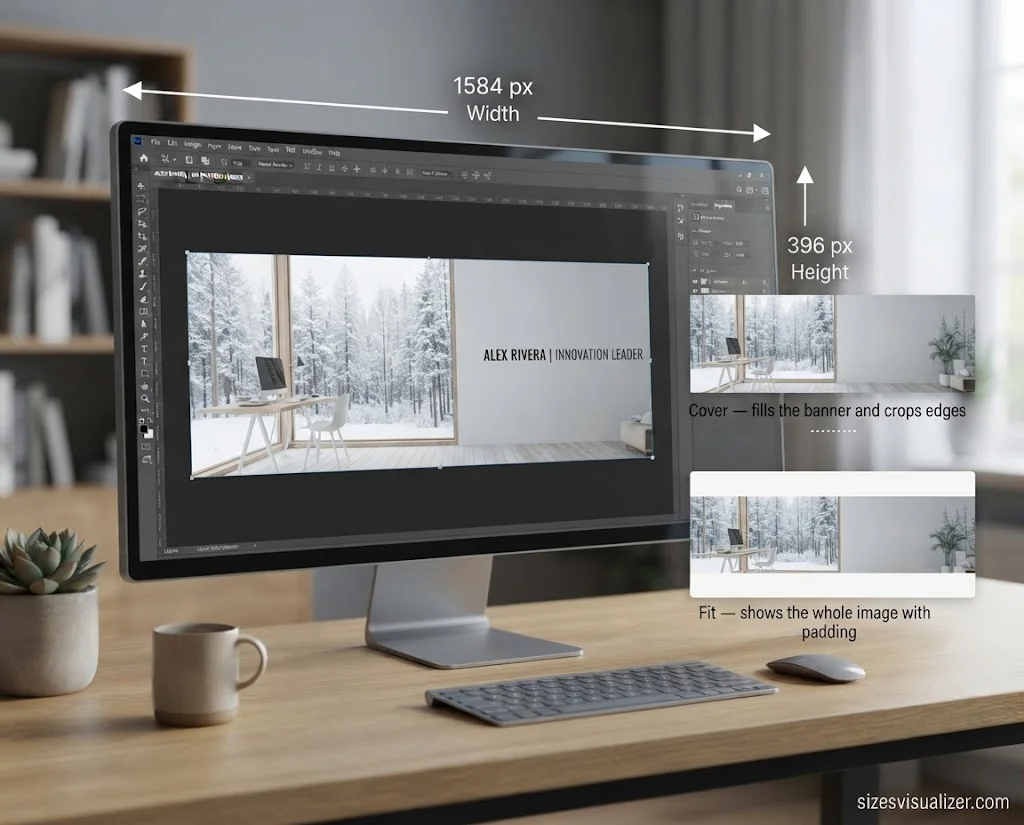
Use a free online resizer, or a design tool such as Canva, which lists a 1584 x 396 px cover photo template. Photoshop works too.
Follow these steps to resize your banner:
- Open your image in a resizer or design tool.
- Set the canvas to 1584 x 396 px.
- Pick a fit mode (see below).
- Export as JPG or PNG at high quality.
- Upload it on LinkedIn and preview it.
Fit modes explained:
- Cover (fill): the image fills the whole banner and the edges are cropped. Best for landscapes, textures, and backgrounds.
- Fit (contain): the whole image shows, with padding around it. Best for logos and text graphics.
Ask one question: is it worse to lose part of the image, or to see borders? That answer picks your mode.
To change your banner on LinkedIn:
- Go to your profile.
- Click the pencil icon on the banner.
- Choose Change photo and upload your file.
- Drag to adjust it, then click Apply.
Why is my banner blurry? The source file was probably too small. Always start big and scale down. Never enlarge a small image.
FAQs
What is the maximum size of the LinkedIn banner in 2026?
The maximum file size is 8 MB. The best dimensions are 1584 x 396 px in JPG or PNG.
Is LinkedIn 16:9?
No. The personal banner is 4:1. A 16:9 image will be cropped heavily.
How to make a LinkedIn banner fit?
Use 1584 x 396 px. Keep text in the center-right safe zone. Preview on mobile and desktop.
How can I convert an image to a LinkedIn banner size?
Upload it to a free resizer or a design tool like Canva. Set the size to 1584 x 396 px and download it.
What is a good size for a LinkedIn banner?
1584 x 396 px at a 4:1 ratio is the best size. Use a high-resolution image.
How can I resize my banner?
Open it in a resizer, choose Cover or Fit, set 1584 x 396 px, and export.
Conclusion
The right LinkedIn banner size is 1584 x 396 px. Keep your key content in the safe zone, start with a sharp image, and preview before you save. A clean banner makes a strong first impression.

Measurement Researcher, Size Comparison Writer & Content Specialist
Timmy Ahad is a dedicated content writer and research specialist at SizesVisualizer.com, where he focuses on creating accurate, easy-to-understand content about measurements, dimensions, size comparisons, and real-world object visualization.